The immersive, first-person fantasy world of Avowed demands responsive and intuitive controls to navigate its combat and exploration. While mouse and keyboard users typically enjoy a seamless experience, many controller players, especially on Xbox, have reported significant challenges with the default setup. Issues ranging from input lag and clunky camera movement to persistent stick drift can severely hinder gameplay. With the release of Patch 1.2.4, Obsidian Entertainment introduced new tuning options, but perfecting your controller feel still requires some know-how. This guide provides the latest, most effective settings for 2025 to transform your controller experience from frustrating to fluid.
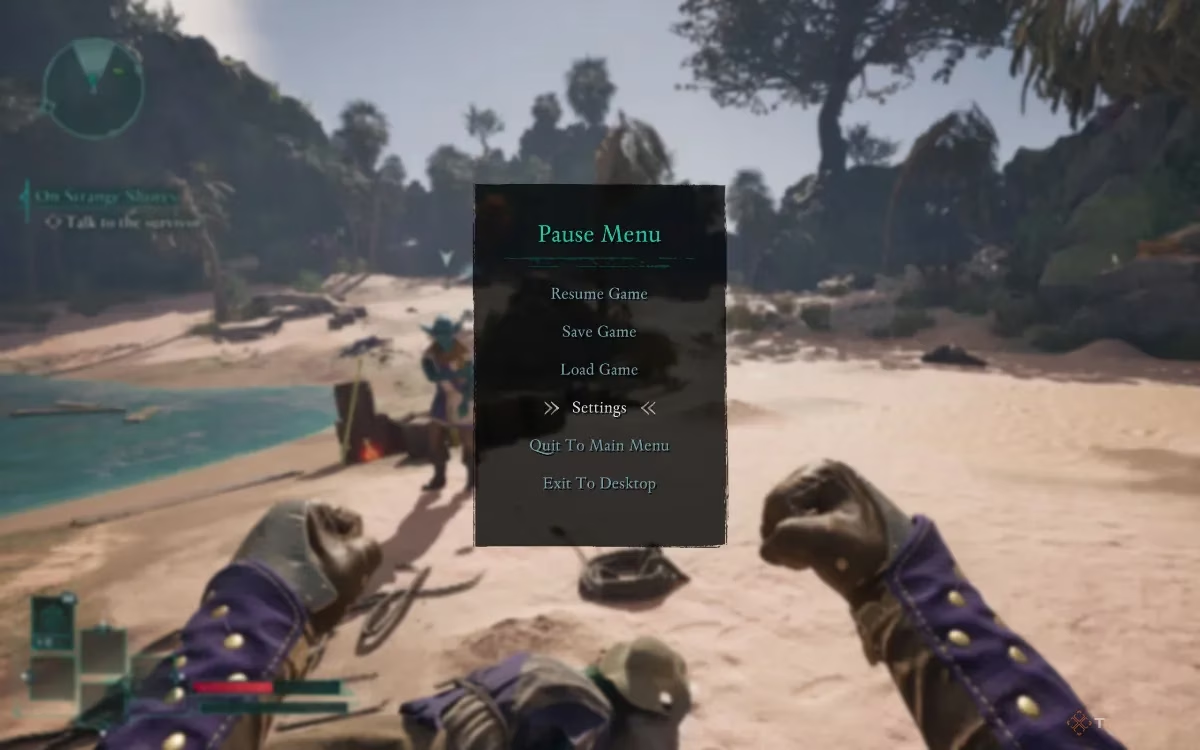
Persistent Controller Issues in 2025
Despite ongoing updates, several core issues continue to affect controller users. Understanding these is the first step to fixing them.
| Issue | Description & Impact |
|---|---|
| Inconsistent Camera Movement | The camera often has jarring transitions between slow pans and fast turns, making environmental scanning and combat aiming feel unnatural and disjointed. |
| Camera Acceleration Problems | Pushing the right analog stick past a certain threshold triggers an aggressive speed boost. This makes micro-adjustments for precise aiming, particularly with bows, incredibly difficult. Xbox players report this is especially pronounced. |
| Lack of Target Lock | Avowed employs a freeform combat system akin to The Elder Scrolls V: Skyrim, requiring full manual aiming. Unlike Dark Souls or The Legend of Zelda, there is no built-in lock-on feature to track enemies, which can make switching targets in hectic fights a vulnerable endeavor. |
| Clunky Ranged Combat | Using bows, wands, or firearms without assistance can feel frustrating on a controller, as the analog sticks lack the pinpoint accuracy of a mouse. |
| Unintended Movement (Stick Drift) | A hardware-related issue where worn controller components cause the character to move or the camera to drift without any player input, disrupting immersion and control. |
The good news? Most of these problems can be dramatically improved or entirely resolved through strategic adjustments in the game's settings menu.
⚙️ Controller Layout & Support
Currently, Avowed's interface officially displays only the Xbox button layout. However, players on PC via Steam can use PlayStation (PS4/PS5) controllers with correct button mapping. The game offers two presets:
-
Default: Standard layout.
-
South Paw: This preset swaps the functions of the left and right analog sticks, catering to alternative playstyles.
🔸 Key Mapping Quick Reference:
-
Move: Left Stick (LS)
-
Look: Right Stick (RS)
-
Jump/Parkour: A (Xbox) / ✖ (PlayStation)
-
Sprint: Click LS
-
Main Hand Attack: RT / R2
-
Off-Hand Action/Block: LT / L2
-
Ability Radial: LB / L1
-
Throw Grenade: RB / R1
A significant limitation as of 2025 is that Avowed does not support custom button remapping for controllers. Players must adapt to the default or South Paw layouts.
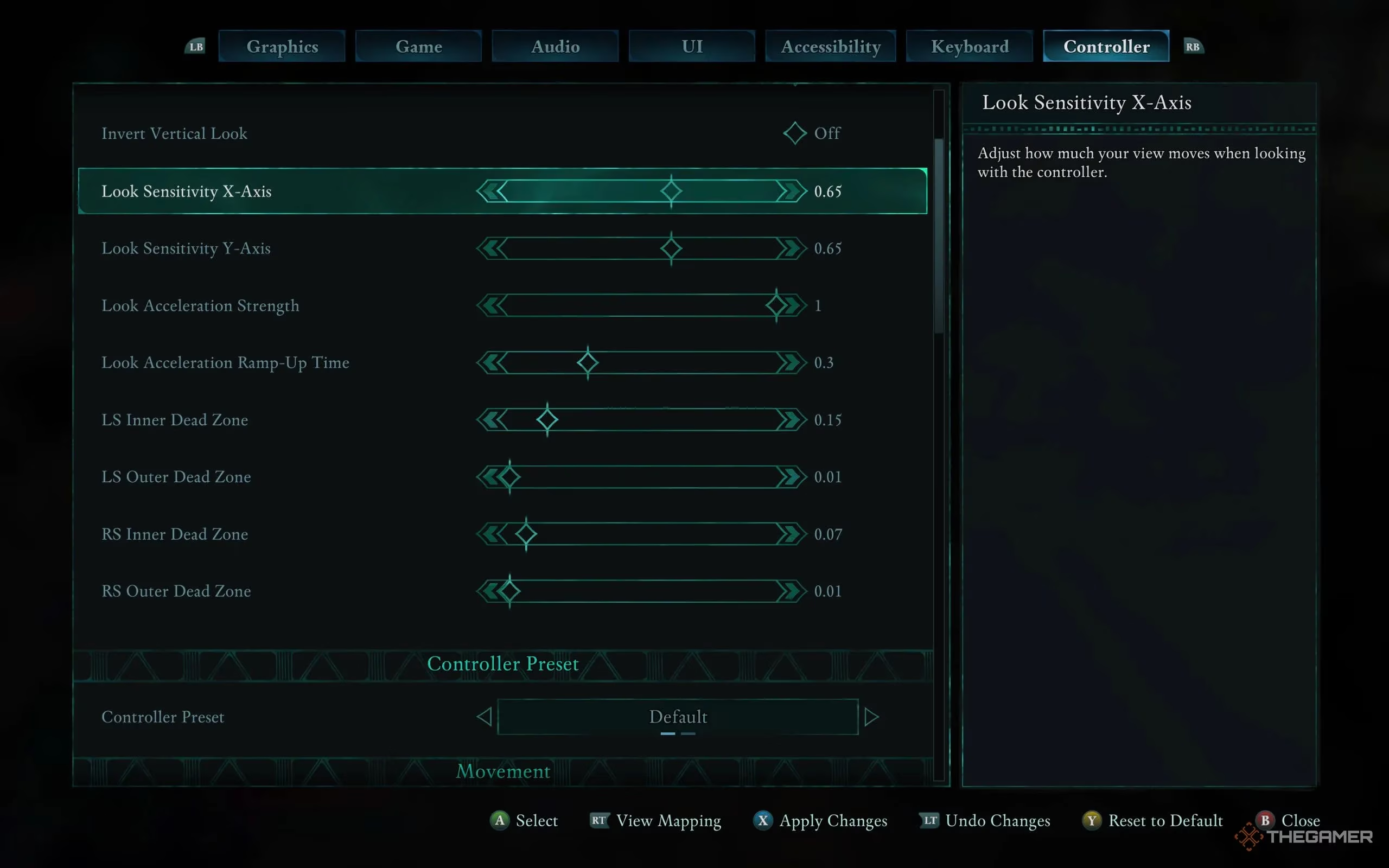
✨ Optimized Controller Settings for 2025
These recommendations are designed to offer the ideal balance between responsiveness for combat and precision for exploration, while also helping to mitigate stick drift. Settings marked 'Optional' can be tailored to taste, but the core sensitivity and dead zone values are crucial for a smooth experience.
Core Sensitivity & Acceleration:
-
Look Sensitivity (X-Axis): 0.65 – Provides a solid balance for horizontal turns. Higher values may feel too twitchy for aiming.
-
Look Sensitivity (Y-Axis): 0.65 – Keeps vertical camera movement consistent with horizontal, essential for ranged combat.
-
Look Acceleration Strength: 1.0 (Default) – Maintaining the default here prevents the camera from feeling too sluggish or overly aggressive.
-
Look Acceleration Ramp-Up Time: 0.3 (Default) – This default setting offers a good compromise between snappy turns and smooth transitions.
Dead Zones – The Key to Fixing Drift & Acceleration:
Adjusting dead zones is arguably the most important step. The Inner Dead Zone determines how far you must move the stick before input is registered, while the Outer Dead Zone defines the stick's maximum input range. Proper settings can neutralize minor stick drift and smooth out acceleration curves.
| Setting | Recommended Value | Why It Matters |
|---|---|---|
| Left Stick Inner Dead Zone | 0.15 (Default) | A good baseline that prevents slight drift from causing unwanted character movement. |
| Left Stick Outer Dead Zone | 0.10 | Optimizes the full range of motion for sprinting and movement. |
| Right Stick Inner Dead Zone | 0.07 | Lowering this from the default is key. It reduces the initial "dead" space, making camera movements feel more immediate and responsive, which directly combats perceived input lag. |
| Right Stick Outer Dead Zone | 0.10 | Ensures full camera rotation speed is easily accessible. |
Additional Options:
-
Controller Vibration: Optional. Disabling it can reduce distraction and hand fatigue during long sessions, but keeping it on enhances immersion.
-
Invert Look Axes: Optional, based on personal preference.
🔄 Alternative Configuration
If the primary settings feel too sensitive or you have a controller with more pronounced drift, try this more forgiving alternative setup:
-
Look Sensitivity X & Y-Axis: 0.6
-
LS Inner Dead Zone: 0.15
-
LS Outer Dead Zone: 0.31
-
RS Inner Dead Zone: 0.15
-
RS Outer Dead Zone: 0.31
This configuration uses larger outer dead zones, which can further smooth out the camera acceleration curve and provide a heavier, more deliberate feel to camera movement.
How to Enable and Tune Aim Assist
For many players, especially those focusing on ranged builds, enabling Aim Assist is a game-changer. It subtly guides your reticle toward targets, making controller-based shooting far more viable and enjoyable.
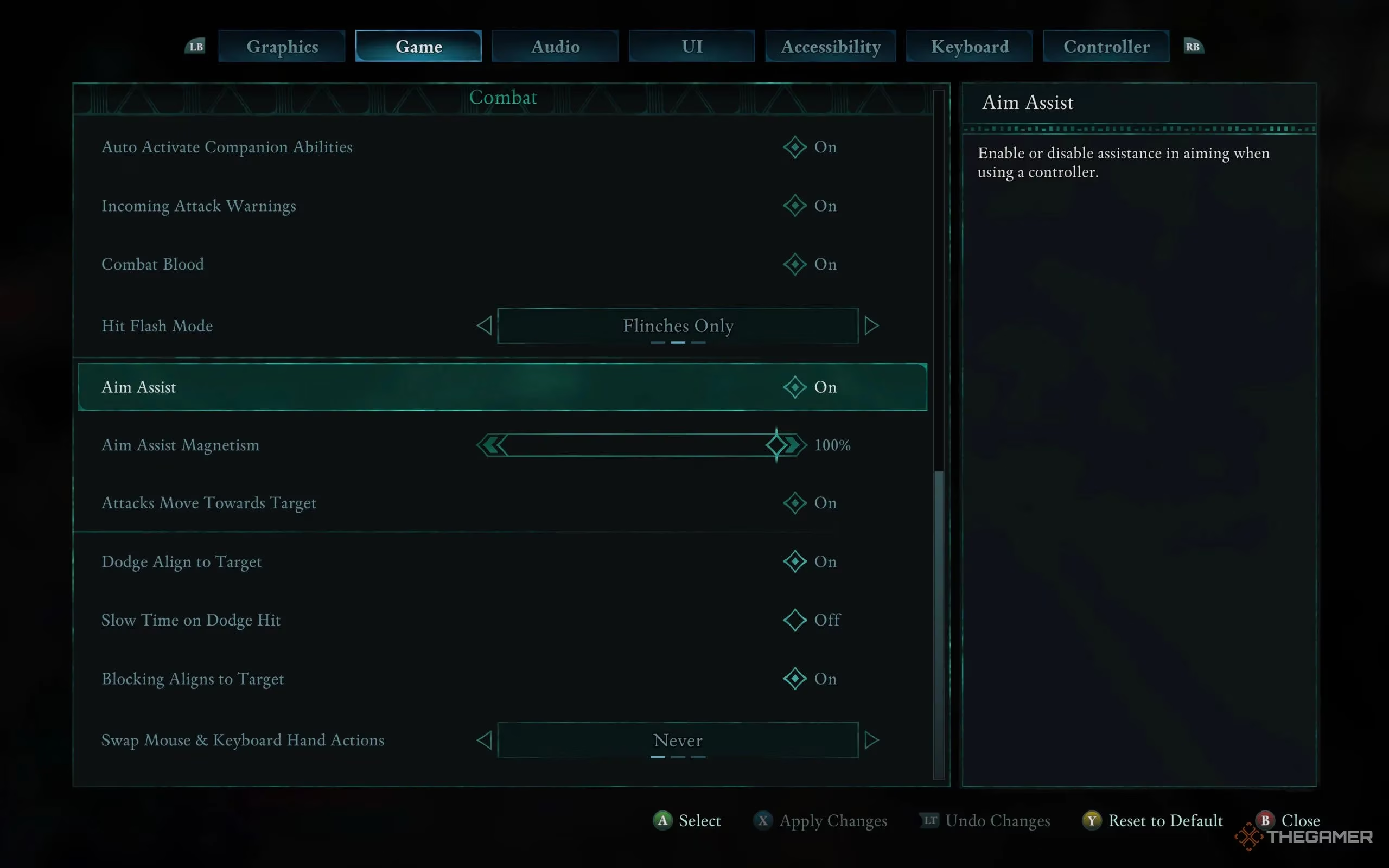
Enabling Aim Assist is straightforward:
-
Pause the game and open the Settings menu.
-
Navigate to the Gameplay or Accessibility tab.
-
Scroll down to find the "Aim Assist" option.
-
Toggle it ON.
Once enabled, you can fine-tune its behavior with the "Aim Assist Magnetism" slider (if available in your game version). Higher magnetism creates a stronger "pull" toward enemies, while lower values offer a subtler nudge. Experiment in a combat-heavy area to find the level that feels like a helpful aid rather than an overpowering auto-aim.
In summary, mastering Avowed with a controller in 2025 is about strategic adjustments. By carefully tuning sensitivity, meticulously setting your dead zones to combat drift, and leveraging Aim Assist for ranged combat, you can achieve a responsive and immersive experience that does justice to the game's rich world and dynamic combat.